How to Get More FPS in Fortnite: Step-by-Step Guide for 2026
By LOLValue Team · February 23, 2026
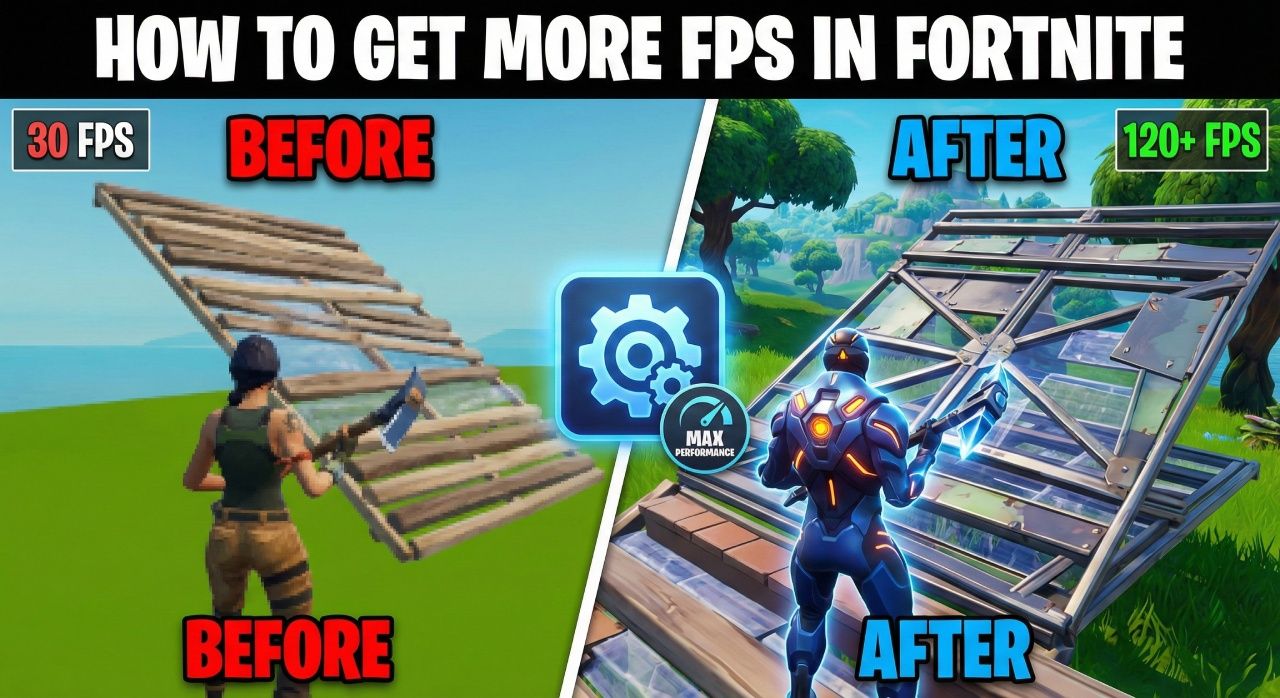
FPS performance separates Victory Royales from elimination screens in competitive Fortnite. Pro players maintain frame rates consistently above 200 FPS because higher frame rates directly improve animation fluidity and input responsiveness.
Fortnite stuttering and frame drops plague even well-equipped gaming systems, creating disadvantages during crucial build fights and endgame rotations. These performance issues stem from suboptimal game settings, Windows configuration problems, and hardware limitations that prevent systems from reaching their potential.
This guide covers in-game settings optimization, Windows tweaks, and advanced hardware modifications that eliminate stuttering, reduce input delay, and maximize system performance. The techniques outlined here target consistent frame rate improvements while maintaining visual clarity for competitive advantage.
Optimize Your Fortnite In-Game Settings
The Video settings menu contains the most impactful performance adjustments for immediate FPS gains. Performance Mode over DirectX 12 delivers 20-50% FPS boost on mid-range systems. This rendering mode eliminates CPU bottlenecks by processing graphics calculations directly through the GPU, resulting in superior frame stability during build fights.
Fullscreen mode takes priority over Windowed or Windowed Fullscreen configurations. The game receives dedicated system resources while reducing input lag that affects aim precision. Native resolution settings (1920x1080 or 2560x1440) paired with disabled V-Sync eliminate the input delay penalties that competitive players cannot afford.
Shadows create the largest performance bottleneck in Fortnite. Disabling shadows produces +53% FPS gain while simultaneously improving enemy visibility in dark areas. Effects and Post Processing set to Low contribute +15% FPS each by removing visual distractions that obscure enemy movements.
View Distance settings balance competitive awareness with performance requirements. Medium settings preserve enemy spotting capabilities while providing +7% performance improvement compared to Epic quality. Frame Rate Limit configuration requires setting one increment above your monitor's refresh rate - 360 FPS for 280Hz displays.
Motion Blur should remain disabled permanently. This setting reduces target tracking accuracy while consuming system resources unnecessarily.
Advanced Performance Settings
Multithreaded Rendering utilizes multi-core CPU architectures effectively. NVIDIA Reflex Low Latency (On + Boost) reduces system latency by approximately 20ms on RTX series cards, providing measurable competitive advantage in reaction-based encounters.
Texture quality settings require strategic consideration. Low or Medium textures maintain performance without sacrificing gameplay clarity, while Epic textures reduce FPS without meaningful visual improvement for competitive play.
Windows and System Optimization for Fortnite Performance
Graphics drivers determine the foundation of your system's frame delivery capability. Display Driver Uninstaller removes conflicting driver remnants before fresh installations from NVIDIA or AMD official sources. Driver conflicts create the micro-stutters that cost crucial eliminations during high-stakes engagements.
Windows Power Mode configuration directly impacts CPU performance during intensive gameplay moments. High Performance mode through Control Panel > Power Options prevents thermal throttling that causes frame drops. This setting maintains consistent clock speeds when build battles demand maximum processing power.
NVIDIA users gain significant latency reductions through specific Control Panel adjustments. Maximum Pre-Rendered Frames to 1 minimizes input delay, while Power Management Mode set to Prefer Maximum Performance eliminates power-saving interruptions. Threaded Optimization and Performance-grade Texture Filtering Quality prioritize frame delivery over visual polish.
Radeon Settings offer AMD users comparable optimization paths. Anti-Aliasing Mode should override application settings at 2X level for the optimal balance between clarity and performance. Texture Filtering Quality on Performance mode and disabled Wait for Vertical Refresh eliminate unnecessary processing overhead. Tessellation Mode overrides provide additional headroom for consistent frame pacing.
Background applications consume CPU resources that Fortnite requires for stable performance. Task Manager reveals which programs steal processing cycles during gameplay. Windows Game DVR under Settings > Gaming automatically records gameplay footage, creating unnecessary system load. Fortnite's executable properties include "Disable Fullscreen Optimizations" under the Compatibility tab, forcing true exclusive fullscreen mode for reduced input lag.
Hardware Upgrades and Advanced Performance Tweaks
BIOS settings unlock performance gains that software adjustments cannot achieve. XMP (Intel) or EXPO (AMD) profiles represent the most crucial first step for RAM optimization. DDR5 6000MHz memory running without XMP defaults to 4800MHz, creating performance loss of up to 20%. This single toggle delivers immediate improvements for CPU-bound gaming scenarios.
Resizable BAR functionality allows CPU direct access to GPU VRAM as one continuous block instead of 256MB segments. Enable this feature for up to 10% performance improvement depending on the game. AMD Precision Boost Overdrive and Intel Multi-Core Enhancement extend CPU boost clocks for longer periods, though proper cooling becomes essential.
Fortnite demonstrates surprising CPU dependency compared to other battle royale games. Testing shows the Ryzen 7800X3D delivered 47% improvement over similarly priced CPUs without 3D V-Cache technology. Pairing it with an RTX 4060 or RTX 5060 achieves 240+ FPS at 1080p resolution. RAM speed impacts performance more than most players realize: upgrading from DDR4 3200MHz to DDR5 6000MHz provides 15% FPS gains in CPU-intensive scenarios.
Temperature monitoring prevents thermal throttling when components reach 90-100°C thresholds, forcing automatic clock speed reductions. HWMonitor or MSI Afterburner track component temperatures effectively. Dust accumulation on fans and heatsinks requires cleaning every six months for optimal cooling performance. SSD upgrades reduce loading times significantly but do not directly impact FPS during active gameplay.
Conclusion
These optimization techniques provide a complete framework for eliminating Fortnite performance issues and maximizing frame rates. The in-game settings adjustments deliver immediate results, while Windows configurations ensure sustained performance during extended gaming sessions.
Software tweaks alone typically produce 30-50% FPS improvements across most gaming systems. Hardware upgrades extend these gains further when combined with proper system configuration.
Monitor your frame rates after implementing each change to track performance improvements. The combination of optimized settings, clean driver installations, and proper hardware configuration creates the foundation for consistent high-performance gameplay.
These modifications result in smoother animation, reduced input delay, and improved response times during crucial moments. The performance gains translate directly into competitive advantages during build fights and high-pressure situations where frame stability determines outcomes.
FAQs
Q1. What is the fastest way to boost FPS in Fortnite?
Switching to Performance Mode in the Video settings menu provides the quickest FPS improvement, delivering a 20-50% boost on mid-range PCs. Additionally, turning off shadows can increase FPS by up to 53%, while setting Effects and Post Processing to Low adds another 15% gain each.
Q2. Should I use DirectX 12 or Performance Mode for better frame rates?
Performance Mode is recommended over DirectX 12 for higher FPS. It bypasses heavy CPU calculations and renders directly on the GPU, resulting in better frame stability during intense gameplay situations like build fights.
Q3. What Windows settings should I change to improve Fortnite performance?
Set your Windows Power Mode to High Performance to prevent hardware throttling, disable Windows Game DVR to stop automatic recording, and enable "Disable Fullscreen Optimizations" in Fortnite's executable properties. These changes help maintain higher clock speeds and reduce system resource consumption.
Q4. Does upgrading RAM actually improve FPS in Fortnite?
Yes, RAM speed significantly impacts performance. Enabling XMP or EXPO profiles in BIOS is crucial, as running memory at default speeds can result in up to 20% performance loss. Upgrading from DDR4 3200MHz to DDR5 6000MHz can provide a 15% FPS increase in CPU-intensive scenarios.
Q5. What graphics card settings should I adjust for maximum FPS?
For NVIDIA users, set Maximum Pre-Rendered Frames to 1, Power Management Mode to Prefer Maximum Performance, and disable Vertical Sync. AMD users should set Anti-Aliasing to 2X, Texture Filtering Quality to Performance, and disable Wait for Vertical Refresh for optimal frame delivery and reduced latency.
More from the LOLValue blog
LoL account value calculator · LoL skins database · LoL MMR checker · Wasted on LoL · Riot Points to USD
LoLValue isn't endorsed by Riot Games and doesn't reflect the views or opinions of Riot Games or anyone officially involved in producing or managing Riot Games properties. Riot Games, and all associated properties are trademarks or registered trademarks of Riot Games, Inc.